How to Merge Multiple Excel Files with Python Automation
Managing multiple Excel files for reporting used to consume entire days of manual copy-paste work. The python excel merge process was often error-prone and time-consuming when handling quarterly sales data across different departments.
The Manual Way (And Why It Breaks)
Opening each Excel file individually, copying ranges from specific sheets, pasting them into a master workbook, and then manually adjusting column widths and formatting. This spreadsheet automation nightmare becomes exponentially worse when you're dealing with dozens of files each month. Copy-paste operations introduce human errors, formulas break during transfers, and maintaining consistent formatting across merged data becomes nearly impossible. When working with quarterly reports from different regional teams, one misplaced cell reference or missed sheet can derail an entire presentation.
The Python Approach
This basic script handles simple merging but has significant limitations for production use:
import pandas as pd
from pathlib import Path

def basic_merge(file_paths):
    """Basic excel file merger - limited functionality"""
    all_dataframes = []

    for file_path in file_paths:
        # Read each Excel file into dataframe
        df = pd.read_excel(file_path)
        # Add source filename as identifier
        df['source_file'] = Path(file_path).stem
        all_dataframes.append(df)

    # Concatenate all dataframes vertically
    merged_df = pd.concat(all_dataframes, ignore_index=True)
    return merged_df

# Usage example
files_to_merge = ['sales_q1.xlsx', 'sales_q2.xlsx']
result = basic_merge(files_to_merge)
result.to_excel('combined_report.xlsx', index=False)
This approach works for simple cases with identical column structures, but fails when files have different sheet layouts, mixed data types, or require specific sheet selection. Memory usage spikes with larger datasets since everything loads into RAM simultaneously.
What the Full Tool Handles
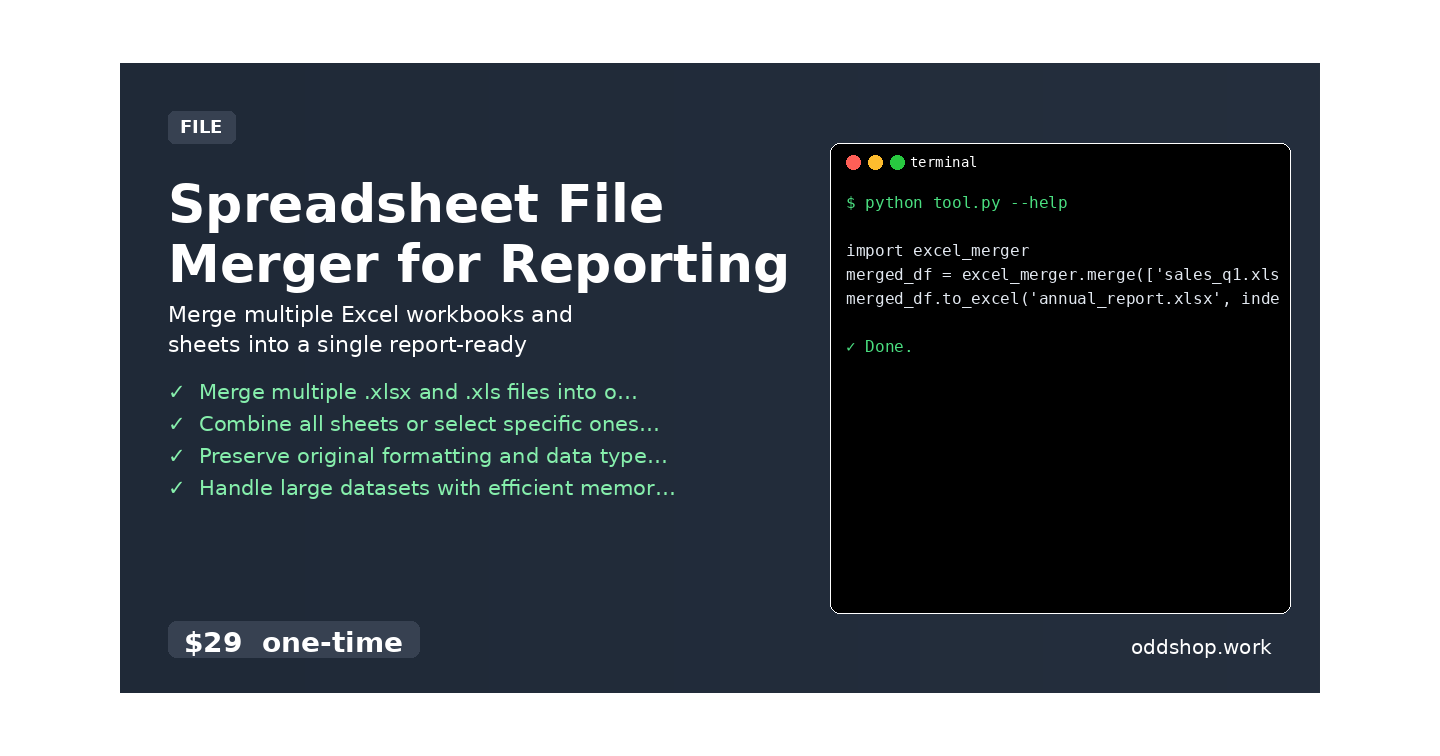
• Merge multiple .xlsx and .xls files into one workbook with proper format preservation
• Combine all sheets or select specific ones by name for targeted data consolidation
• Preserve original formatting and data types without conversion errors
• Handle large datasets with efficient memory usage through streaming
• Command-line interface for batch processing and automated excel tasks
• Production-ready python excel merge functionality for enterprise reporting
Running It
import excel_merger
merged_df = excel_merger.merge(['sales_q1.xlsx', 'sales_q2.xlsx'])
merged_df.to_excel('annual_report.xlsx', index=False)
The tool accepts command-line flags for sheet selection, output formatting, and memory optimization based on your dataset size.
Get the Script
Skip the build phase and get professional-grade functionality immediately.
Download Spreadsheet File Merger for Reporting →
$29 one-time. No subscription. Works on Windows, Mac, and Linux.
Built by OddShop — Python automation tools for developers and businesses.